
Dashboard
Open Dashboard in the Sqquid app for an overview of your current Account. It brings together order activity, revenue, returns, and alerts that need attention. New Accounts also see the Setup Guide.
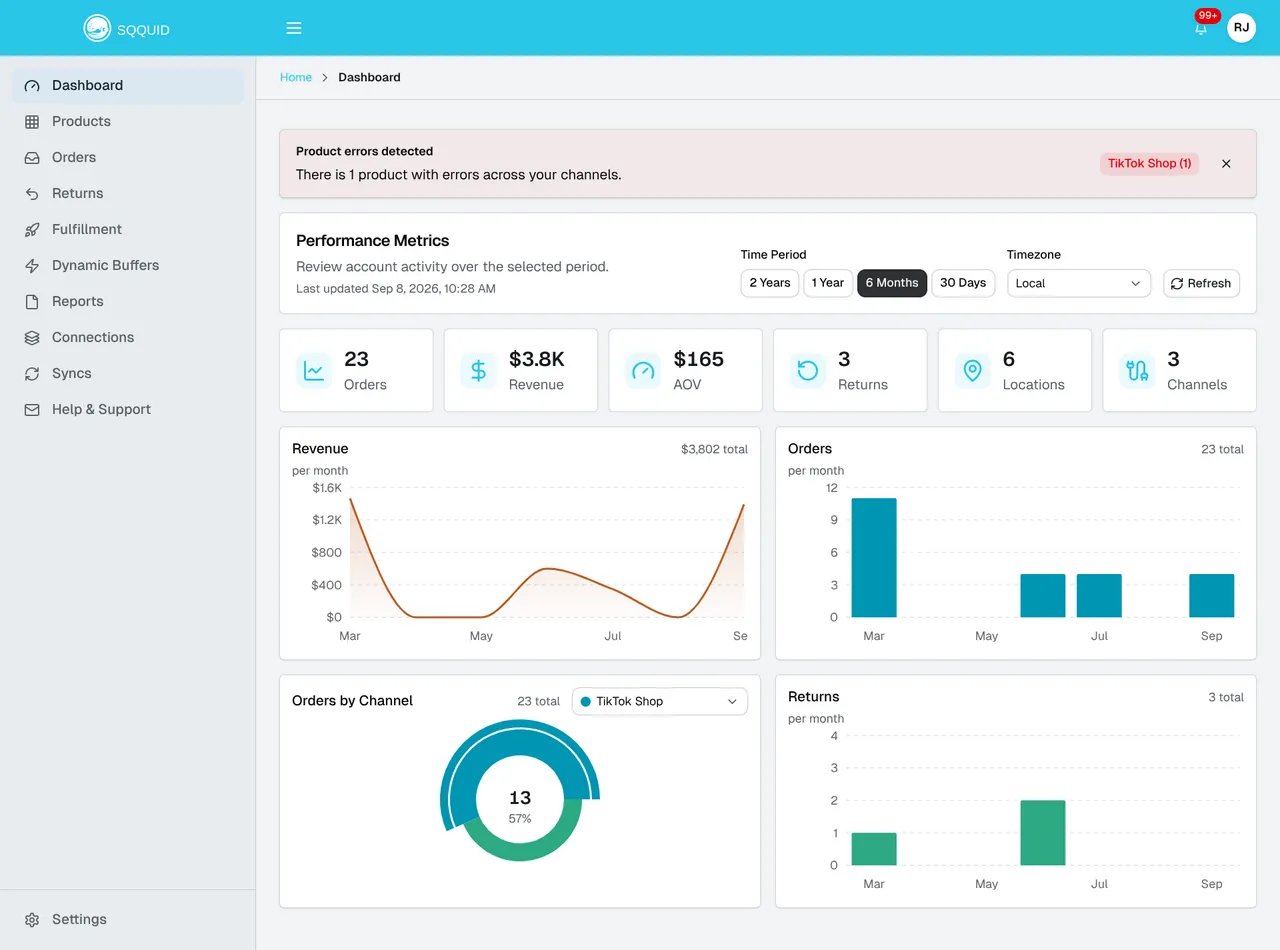
Choose a period and timezone
Section titled “Choose a period and timezone”Under Performance Metrics, choose 30 Days, 6 Months, 1 Year, or 2 Years. The dashboard opens with 30 Days selected. Charts show daily activity for 30 days and monthly activity for longer periods.
Use Timezone to choose Local, your browser’s timezone, or UTC. This controls how activity is grouped into days and months. Use the same timezone when comparing figures with a teammate.
Check Last updated and select Refresh to fetch the latest metrics available in Sqquid. Revisiting the dashboard can show figures loaded earlier that day. Refreshing metrics does not start an import from your Connections.
Understand the summary cards
Section titled “Understand the summary cards”| Card | What it shows |
|---|---|
| Orders | Number of order records in the selected period. |
| Revenue | Sum of those orders’ recorded totals. |
| AOV | Average order value, calculated as revenue divided by the number of orders. |
| Returns | Number of return records created in the period, regardless of when the original orders were placed. This counts returns, not returned units or refund amounts. |
| Locations | Current number of Locations in the Account. |
| Channels | Current number of sales Connections, including disabled ones. POS and shipping Connections are not included. |
Locations and Channels do not change with the selected period. The cards abbreviate large values, such as 3.8K, and monetary values use USD formatting and rounding.
Explore the charts
Section titled “Explore the charts”Revenue, Orders, and Returns show activity over time. Hover over a point or bar to see its period and value. Each chart also shows the total for the selected period.
Orders by Channel compares order counts across your sales Connections. Use its dropdown to highlight a Connection and see its order count and percentage of all orders. The highest-volume Connection is selected initially. This selection affects only that chart.
The chart includes up to the ten Connections with the most orders. Use Orders when you need to find and review individual purchases.
Follow error alerts
Section titled “Follow error alerts”When Sqquid detects errors, banners above the metrics provide shortcuts:
- Select a Connection in Product errors detected to open its products filtered to errors. See Sync errors.
- Select Review skipped orders to open orders that need attention. See Retry skipped orders.
- Select Review skipped returns to open the Returns list filtered to skipped returns. See Return sync errors.
These alerts are separate from the selected metrics period. Their counts can lag behind changes, so use the linked list to review the current records. Closing a banner hides it for that visit; it does not resolve the errors.
Continue Account setup
Section titled “Continue Account setup”If the Setup Guide appears, expand a step and follow its action to finish setting up the Account. Once the required steps are complete, you can hide the guide and reopen it from Help & Support.
See the Setup Guide overview for the full sequence and how progress is tracked.