
Configure order routing
Open Settings > Order Routing to choose which Locations receive order items. This section appears when order routing is enabled for your Account.
Rules run from top to bottom. Each assigns the items it can, then passes anything remaining to the next rule. See How order routing works for the full evaluation order and examples.
Choose Location rules
Section titled “Choose Location rules”Under Location rules, select Add rule and choose how to assign stock:
| Rule | When to use it |
|---|---|
| Connection-assigned location | Keep the fulfillment Location supplied by a supported Connection. |
| Route by sales channel | Send orders from selected Connections to chosen Locations. |
| Fewest locations first | Prefer a Location that can cover more of the order to reduce split shipments. |
| Ranked locations | Try Locations in your preferred order, such as warehouse before stores. |
| Closest location | Prefer stock near the delivery address. Keep Location ZIP codes up to date. |
Choose the eligible Locations in the rule editor, then select Done. For ranked routing, arrange the Locations in the order you want to use them. Connection-assigned location uses the Connection’s assignment and has no Location list to configure. You can give any Location rule a Custom label to describe its purpose.
Drag rules or use their move controls to change which runs first. Use each rule’s switch to turn it on or off, or its edit and remove controls to change the list. These changes remain a draft until you select Save on the page.
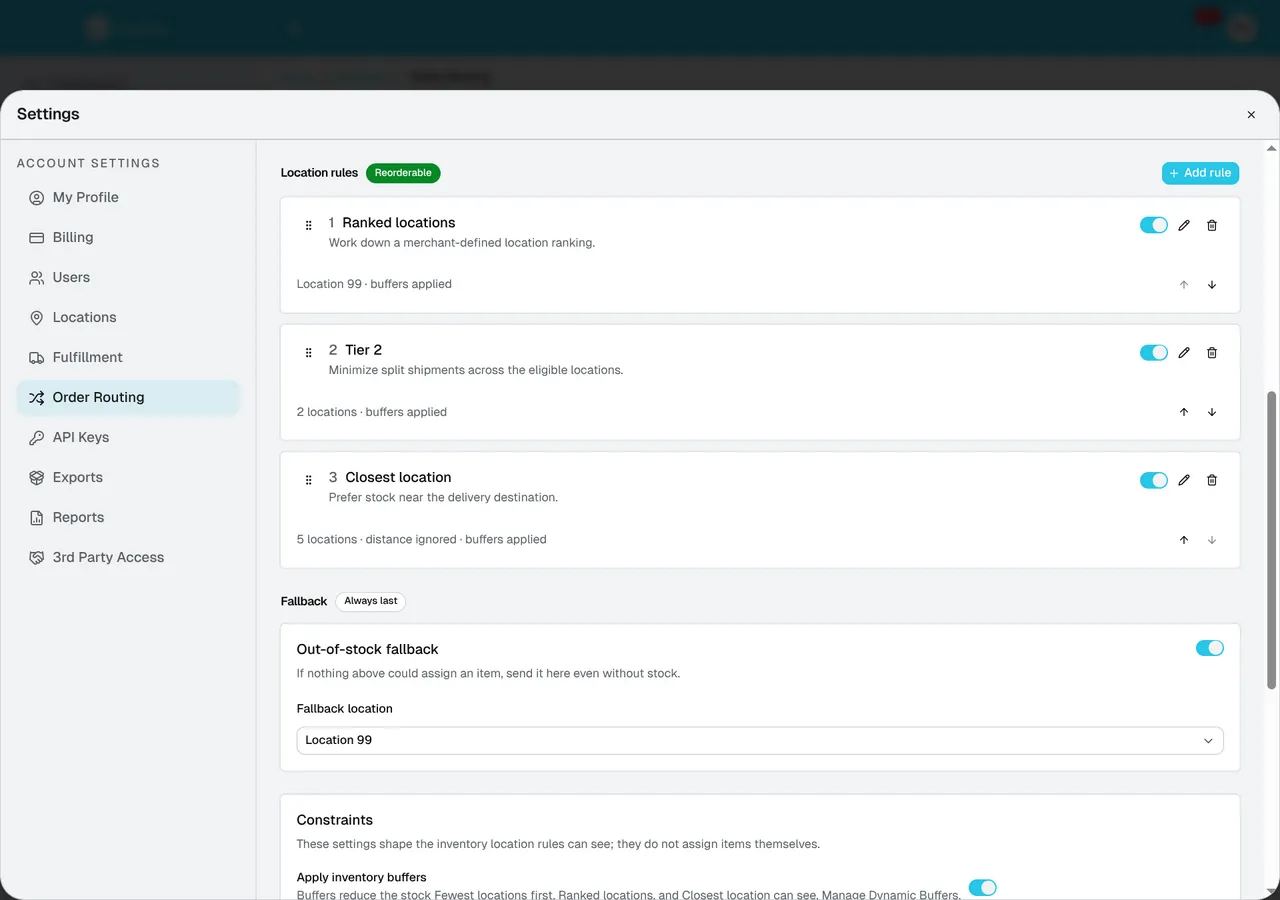
The rule names and Locations shown are examples. Your list reflects your Account’s configuration.
In Route by sales channel, Honor inventory limits assignments to available stock. Turning it off can assign more units than a Location has, but the Location still needs a positive stock record. In a closest-location rule, Ignore destination uses stock coverage instead of distance.
Run a rule only for matching orders
Section titled “Run a rule only for matching orders”Every Location rule supports Conditions. Without conditions, an enabled rule runs for every order that still has quantity to assign. If its conditions do not match, Sqquid skips it and tries the next rule.
- Add or edit a Location rule.
- Under Conditions, select Add condition.
- Choose a field, comparison, and value.
- Add more conditions in the same set if they must all match.
- Select Add another set of conditions if the rule should also run for an alternative set. Matching any one complete set is enough.
- Select Done, preview matching and non-matching orders, then save the page.
| Field | What it checks | Comparisons |
|---|---|---|
| Connection | The Connection the order was imported from. Choose it from the list. | is, is not |
| Source | The sales source recorded on the order, which can differ from its importing Connection. | is, is not, contains, does not contain, starts with, ends with |
| Number of items | Total quantity across all items in the original order. Two lines with quantities 3 and 2 count as 5. | is, is not, is greater than, is less than, is at least, is at most |
Source comparisons ignore capitalization and spaces at the beginning or end. Use the Source shown in Preview routing when choosing a value. Number of items stays the same as earlier rules assign quantities.
For example, add Connection is your Shopify Connection and Number of items is at least 5 to one set on a Ranked locations rule. That rule runs only for orders from that Connection containing at least five units. Put a rule without conditions below it to handle other orders and any remaining quantity.
Conditions apply to Location rules. Dropship, pickup, and out-of-stock fallback keep their own settings.
Keep the Connection’s assigned Location
Section titled “Keep the Connection’s assigned Location”Add Connection-assigned location when you want Sqquid to keep a fulfillment decision already made by the Connection. Route by sales channel instead uses the Location lists you choose in Sqquid.
Place Connection-assigned location before stock-based rules if it should take priority. Add conditions to limit it to particular orders, such as a Shopify Connection and a specific Source recorded for orders placed through a marketplace app.
The rule uses mapped Locations without checking Sqquid inventory, inventory buffers, or open-order limits. It keeps supplied shipping, pickup, or dropship handling. Earlier dropship and pickup rules still run first, and this rule only assigns quantity left by earlier rules.
Shopify is currently the supported Connection. It needs inventory by location enabled, valid Location mappings, and permission to read merchant-managed fulfillment orders. See Shopify routing requirements.
If the Connection supplies no usable assignment, the rule passes items onward. Partial assignments also leave the remaining quantity for later rules. Keep another Location rule or fallback below it to cover these cases.
Handle dropship and pickup items
Section titled “Handle dropship and pickup items”Item rules run before Location rules.
- Use Dropship rules for supplier-fulfilled items. Add a rule, choose its Location, and enter SKUs on separate lines or separated by commas. Matching items go there regardless of stock and are excluded from Sqquid’s Fulfillment screen. If SKU lists overlap, the first rule wins.
- Enable Store & curbside pickup to assign pickup orders to the customer’s chosen store. Its editor lets you map custom checkout shipping labels to Locations. Turn on Ship stock shortages elsewhere if later rules should assign items the pickup store cannot cover.
Select Done in an editor, then save the page when your changes are ready.
Handle items left over
Section titled “Handle items left over”Out-of-stock fallback runs last. Enable it and choose a Fallback location if remaining items should go there even without stock. Without a matching rule or fallback, items may remain unassigned.
Adjust stock and workload limits
Section titled “Adjust stock and workload limits”Under Constraints, you can:
- Turn on Apply inventory buffers so Fewest locations first, Ranked locations, and Closest location use stock reduced by your Dynamic Buffers.
- Enable Open-order limits, choose a Location, and select Add limit. Set its maximum open orders and the minimum it must fall to before receiving normal priority again. Locations over their limit are set aside unless they are the only option.
- Select Connections that ignore open-order limits for exceptions.
Preview and save
Section titled “Preview and save”- Select Preview routing.
- Find an existing order by order number or customer and select it.
- Review the order’s Connection, Source, and Number of items, then the proposed assignments and the reasons each rule ran or skipped items. A condition mismatch shows the expected and actual values. If no Connection assignment is available, check its Location map and permissions.
- Close the preview and select Save to apply the configuration, or Discard to return to the saved settings.
The preview uses your draft rules, current inventory, and current open-order counts. When Connection-assigned location is enabled, it also retrieves the Connection’s current assignment. It does not save settings or allocate the order. Its result can differ from the order’s original routing because stock, workload, or the Connection’s assignment may have changed.
To review an order’s existing assignments, open Order details. To change an existing assignment, see Move a line to another Location.