
Order returns
Open Orders, select View beside the order, then open Returns. A return badge in the order list helps you spot orders with existing returns.
Review previous returns
Section titled “Review previous returns”Order Items shows the original quantities. A red quantity beside an item’s ordered quantity shows how many have already been returned.
Return History lists each return’s ID, date, quantity, shipping amount, adjustment, and total. Select a return row to expand its SKUs, quantities, return stores, and receipt information. A pending receipt means no receipt number is recorded yet.
Check this history before creating another return, especially if someone already processed it in the sales system. Imported returns appear according to that Connection’s return workflow.
Create a return
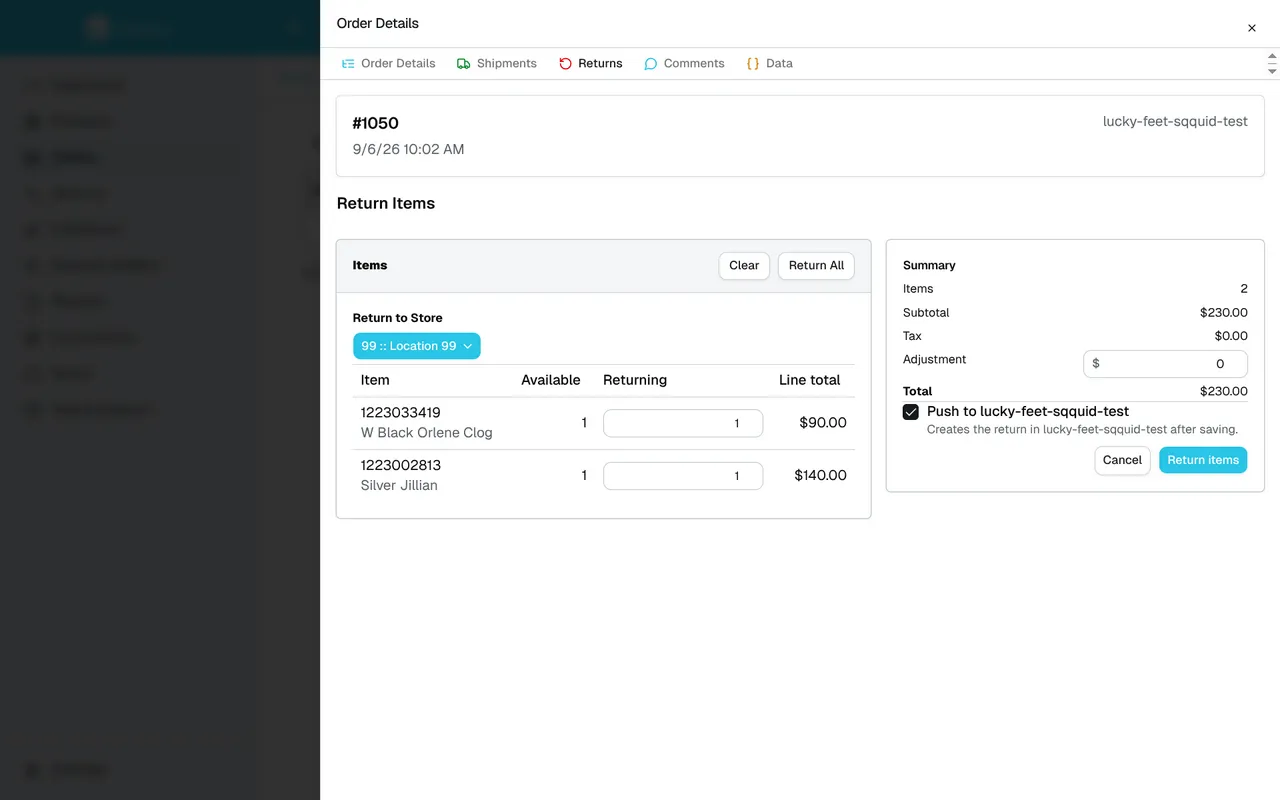
Section titled “Create a return”- Select Return to choose individual quantities, or Return all items to prefill all quantities still available to return. Neither button saves the return yet.
- Choose the receiving location in Return to Store. This selection applies to all items in this return, so check it even if a store is already selected.
- Enter the quantity for each item under Returning. Available is the original quantity less earlier returns. Leave unwanted items at zero. Return All fills the remaining quantities; Clear resets them to zero.
- Review the Summary. If needed, enter an Adjustment. Positive amounts increase the return total; negative amounts reduce it.
- Check Push to [Connection name]. Its initial selection comes from that Connection’s return settings. See below before changing it.
- Select Return items to save. Sqquid confirms the return and adds it to Return History.
Use Cancel to leave the form without saving. If you changed quantities, the adjustment, or the push option, confirm that you want to discard the return.
Decide whether to push the return
Section titled “Decide whether to push the return”Turn on Push to [Connection name] when Sqquid should also send this return to the order’s originating sales Connection. The Connection must be enabled and support return export. Saving queues the export; it does not confirm that the sales system has finished processing it.
Leave it off when you do not want Sqquid to create another return in that sales system. The return is still recorded in Sqquid, and your Account’s inventory and POS return processing can still apply.
For POS-led Accounts, check the receiving store and the POS return workflow. RunIt requires the original order to have exported successfully before it can link a return to its receipt. For Accounts using the coming-soon Shopify Channels Hub, also follow the Shopify-side return workflow.
If a saved return fails to sync
Section titled “If a saved return fails to sync”Sqquid makes up to three attempts to send a return to the destination system. If the third attempt fails, Sqquid marks the return as Skipped, records the error, and shows it in the app. Automatic attempts stop for that return.
You must resolve the reported issue, then manually retry the existing return in Sqquid. Follow Return sync errors to find the skipped return, read its error, and select Retry.
If you cannot submit
Section titled “If you cannot submit”The form requires a quantity within the available range and either at least one item to return or a nonzero adjustment. If Available is zero, review earlier returns for that item.
If saving reports an error, reopen the order’s return history before trying again to check whether the return was recorded. Contact help@sqquid.com with the order number if the result is unclear.