
Holds and location changes
In To fulfill, expand an order and select Details. The Fulfillment tab groups its items by status and shows their quantity and assigned Store, meaning the fulfilling Location.
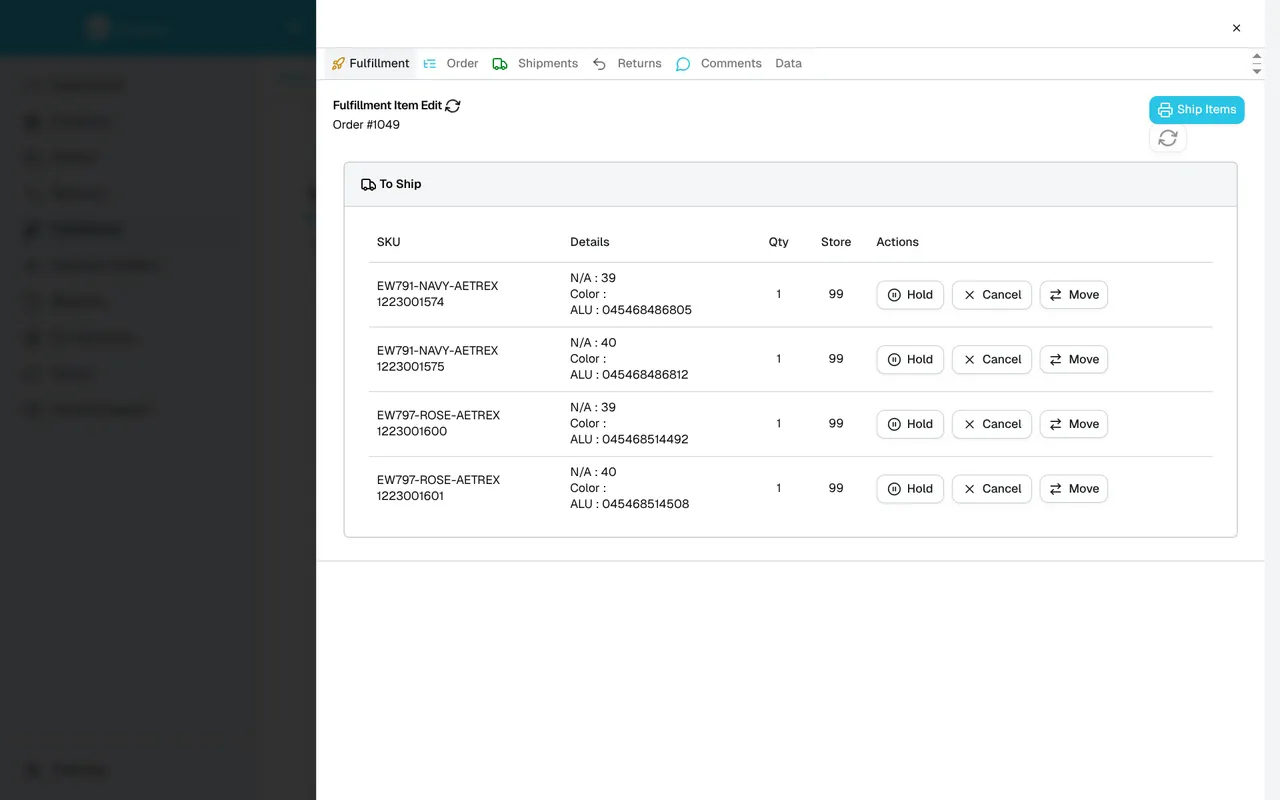
Put an item on hold
Section titled “Put an item on hold”Select Hold beside the item to pause its fulfillment. It moves to On Hold. Use the On hold filter in the order list to find work that needs attention.
When the issue is resolved, open the item again and choose Remove Hold. Check its fulfillment status before continuing.
Cancel an item allocation
Section titled “Cancel an item allocation”Select Cancel beside an eligible unshipped item and confirm. The item moves to Cancelled. Use Remove Cancel if it should return to fulfillment, then check its status.
This cancels the item’s fulfillment allocation in Sqquid. It does not issue a payment refund or cancel the entire order on the ecommerce platform. Follow the appropriate return workflow when items need to be returned.
Move a line to another Location
Section titled “Move a line to another Location”- Select Move beside an eligible unshipped line.
- Choose the destination in Move to. Review the displayed stock and confirm that the Location can fulfill it.
- To move the whole line, keep Units to move at the full quantity shown.
- Select Move … units and check the resulting Location assignment.
Items that are shipped, cancelled, or on hold are not available for this move action.
Leave notes and review the order
Section titled “Leave notes and review the order”Use Comments to explain a hold, cancellation, or location change to your team. See Order details and comments for the comment workflow.
The other tabs show the original order, shipment records, and returns. Data exposes technical order data and allows edits in this fulfillment panel. Use it only when working with Sqquid support.