
Sync errors
A product can sync successfully to one Connection and fail on another. Always select the affected Connection before investigating an error.
Find products with errors
Section titled “Find products with errors”In Products, open Filters and choose Last sync result → Errors to search the Connection’s full product list.
The Sync Errors quick tag filters only the current page. Select a product’s red Error badge to read its latest export error.
Read the error details
Section titled “Read the error details”Use the message to identify the cause. Common problems include missing or duplicate SKUs, invalid prices, missing required fields, and a listing that Sqquid cannot match.
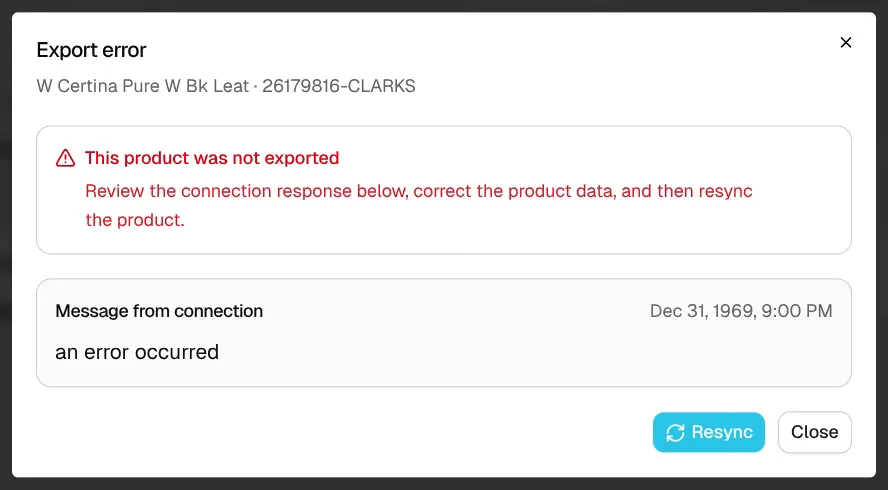
Read Message from connection before choosing Resync. The message varies by Connection and error.
- Read the error and check the named field or setting.
- Correct source-owned data in the source system. Wait for that correction to reach Sqquid.
- Correct Connection-specific data or settings where appropriate.
- Select Resync and check the next export result.
If the error has no useful message, review the failed run in Syncs and the provider’s troubleshooting guide. Authorization and service failures may need attention even when the product data is correct.
Failed products retry automatically
Section titled “Failed products retry automatically”Sqquid retries failed product information and inventory updates automatically. If the same product fails three times in a row, Sqquid stops automatic attempts for that product on the affected Connection.
Check existing work before requesting another export. Repeated retries will not fix invalid data or missing permissions.
When a product keeps failing
Section titled “When a product keeps failing”After three consecutive failures, Sqquid automatically disables the product’s Sync switch, removes it from the queue, and marks the error. This also applies to inventory-only synchronization. The app notifies you about the errors.
You are responsible for reading the error, resolving its cause, and resyncing the product. Fixing the cause alone does not turn Sync back on.
To recover paused products:
- Filter by Sync enabled → Disabled and Last sync result → Errors.
- Open the errors and correct their causes.
- Select the affected products and choose Resync.
- Check that the required variants also have Sync on.
- Confirm a successful export. The error clears after success.
A resync enables the parent product. It leaves individual variant Sync switches unchanged.
Get help
Section titled “Get help”Use Product and inventory sync errors for checks to make before retrying, including inventory and Location issues. See How Sqquid handles sync failures for the shared retry rules.
Contact Sqquid support with the Account, Connection, SKU, error message, and approximate time. For a change that never reached the destination, use the synchronization checklist.