
Edit product fields
Product fields are edited directly in the grid. Changes are staged first and only written when you save, so you can review everything before it takes effect.
How editing works
Section titled “How editing works”- Select a cell and type. Press Enter or click away to keep the change; press Escape to revert it.
- Edited rows are tinted, and a pending-changes bar appears showing how many changes are staged, with Undo, Discard, and Save buttons.
- Pending changes survive paging through results, so you can edit across several pages and save once.
- Select Save to apply everything. Sqquid queues saved products for export to the Connection. You do not need to resync them separately.
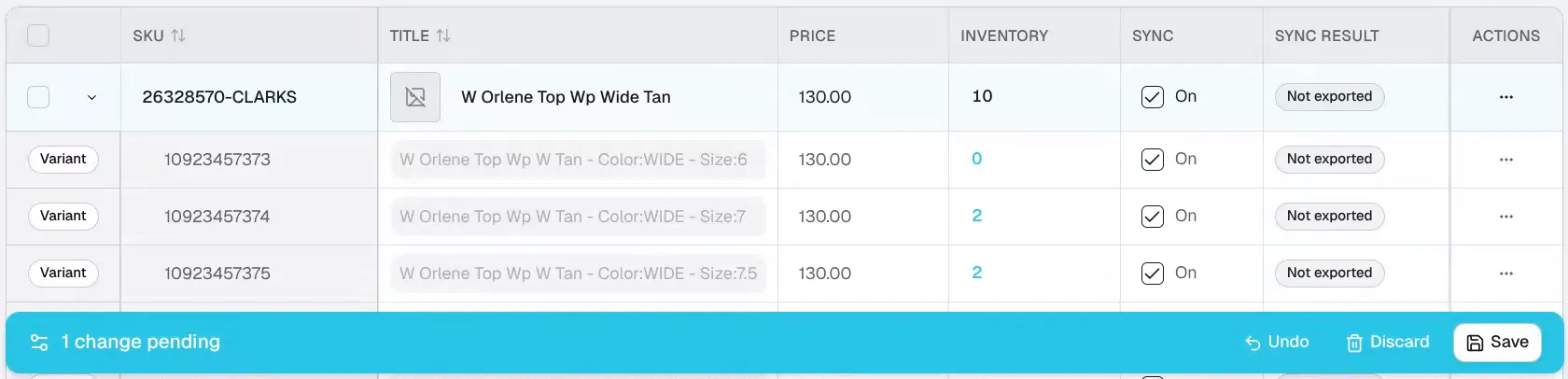
The pending-changes bar stays visible while you review your edits. Nothing is saved until you select Save.
If some changes fail to save, Sqquid keeps them staged so you can correct and retry; the toast tells you how many were not saved.
To edit the long Description or Short description, open the row’s ⋯ actions menu and choose Edit HTML, which opens a rich-text editor. Applied changes are staged like any other edit.
Which fields are editable where
Section titled “Which fields are editable where”Some fields belong to the parent product, some to the variant:
| Field | Parent | Variant |
|---|---|---|
| SKU, ALU | ✓ | ✓ |
| Price, Compare at | ✓ | ✓ |
| Sync (On/Off) | ✓ (applies to all variants) | ✓ |
| Title, Brand, Categories | ✓ | inherited |
| Description, Short description | ✓ | Not editable |
| Attribute 1 / 2 labels (e.g. “Size”) | ✓ | inherited |
| Attribute 1 / 2 values (e.g. “9”) | Not editable | ✓ |
| Visibility (Published / Draft) | ✓ | Not editable |
| Sync mode (Full sync / Inventory only) | ✓ | Not editable |
Variant cells that inherit from the parent are shown greyed with an Inherited from parent tooltip. Turning the parent’s Sync checkbox on or off applies to every variant; you can then adjust individual variants.
Inventory is never edited here. Quantities come from the inventory source of truth. Selecting a variant’s quantity opens a read-oriented inventory panel with per-location breakdowns and history.
External ID, ID, Sync Result, Last exported, Created at, and Updated are read-only.
Validation
Section titled “Validation”Cells with problems show a red error triangle or amber warning triangle. Hover over the icon to read the message. The Missing Required Fields tag collects rows with errors.
- Errors block saving. For example, a missing SKU, or Connection-specific requirements such as a price greater than 0 for a fully synced Shopify product, or duplicate SKUs among synced variants.
- Warnings don’t block saving. For example, a missing title or description, which are recommended but not required.
If a warning says the change may not appear on the Connection, check product field ownership. Sqquid may be configured to leave that field unchanged at the destination. See your Connection guide, such as Shopify products and inventory.
Deleting products
Section titled “Deleting products”The row’s ⋯ menu also offers Delete. Deleting removes the product family from Sqquid and removes the affected SKUs’ inventory across the Account. Other Connections using those SKUs can be affected. The connected store keeps its products. This cannot be undone in Sqquid.
To stop synchronization while retaining the records, turn Sync off instead.