
Manage Locations
Open Settings > Locations to manage your stores and warehouses. Search by name, Store ID, or ZIP code to find a Location, then select Edit.
Add or update a Location
Section titled “Add or update a Location”- Select Add Location, or Edit beside an existing Location.
- Enter its name and Store ID, the identifier used by your connected systems.
- Complete the street address, city, state or region, postal code, and phone number.
- Optionally enter Notification emails. Separate multiple addresses with commas.
- Select Save location.
Use an accurate address because Sqquid uses it for routing, shipping calculations, and fulfillment decisions. Keep the Store ID consistent with your connected system; do not change it after building mappings and routing rules around it. See Locations and mappings.
To import Locations from Shopify or Lightspeed instead, follow Add your locations.
Your plan limits how many Locations you can add. Check Billing if you have reached the allowance.
Set business hours for carrier pickups
Section titled “Set business hours for carrier pickups”Carrier pickups require the Location’s timezone and business hours. In the Location editor:
- Under Business hours, choose the Timezone where the Location operates.
- Set opening and closing times for each day, or mark it Closed.
- Select Save location.
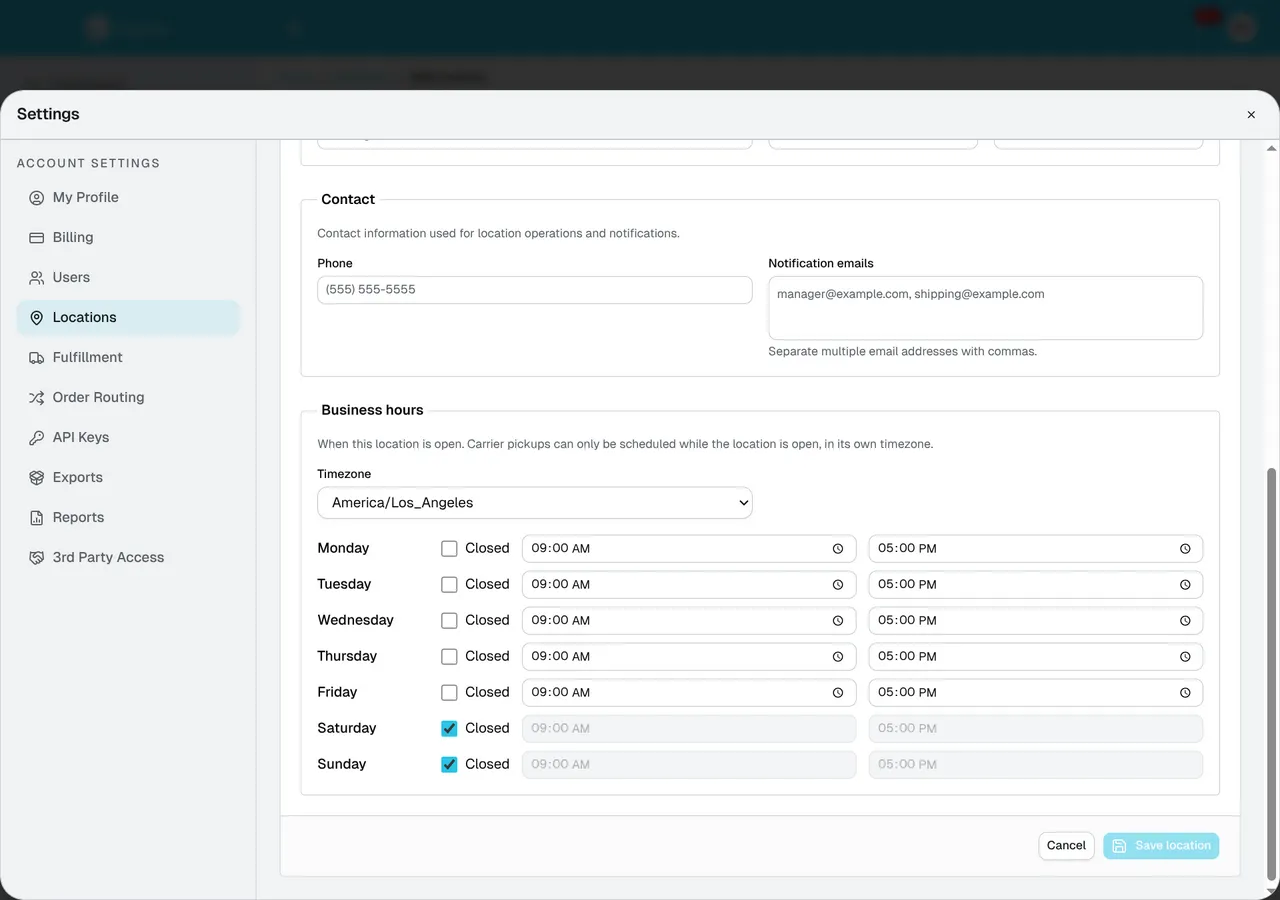
Choose hours that match your operation; the image shows an example. Pickup windows must fall within those hours. See Carrier pickups and manifests to arrange collection through EasyPost.
Delete a Location
Section titled “Delete a Location”Open Edit and select Delete location only when the Location is no longer needed. Check its use in Order Routing, Dynamic Buffers, and Connection settings first.