
Connections
A Connection links one Sqquid Account to an external system. Sqquid exchanges information with ecommerce platforms, marketplaces, POS systems, and shipping services through these Connections.
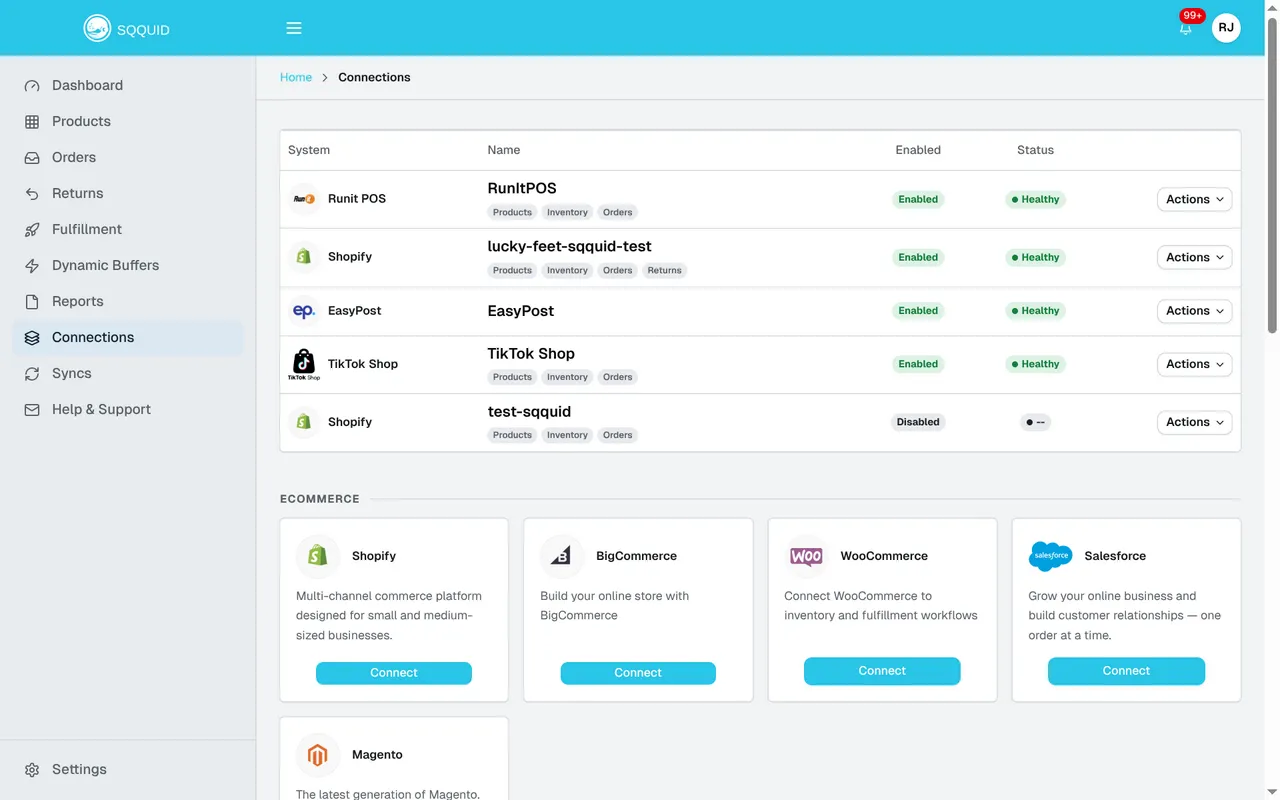
Select a Connection name to manage it, or use a Connect card to add a system. The Healthy label indicates that a Connection is enabled; check Syncs to confirm its updates succeeded.
For a tour of adding and managing Connections in the app, see Daily Operations > Connections.
Before you configure a Connection, read about sources of truth, Locations and location mappings, and synchronization. The Connection guides describe the behavior of each external system.
How Connections fit together
Section titled “How Connections fit together”Connections have different roles:
| Role | What it does | Examples |
|---|---|---|
| Product and inventory source | Supplies the product information and available inventory that Sqquid uses as its starting point. | RunIt POS, Lightspeed Retail (X-Series), or Shopify Channels Hub |
| Sales Connection | Receives supported listing or inventory updates and sends orders to Sqquid. | Shopify, Amazon, eBay, Walmart, TikTok Shop |
| Service Connection | Provides a service, such as shipping. It does not receive customer orders. | EasyPost |
Your Account configuration determines which system is the source of truth. In a POS-led operation, the POS usually supplies product and inventory information. With Shopify Channels Hub, Shopify supplies it.
Documented Connections
Section titled “Documented Connections”These guides cover the following systems:
| Type | Systems |
|---|---|
| Ecommerce platforms | Shopify, WooCommerce, and BigCommerce |
| Marketplaces | Amazon, eBay, Walmart, and TikTok Shop |
| POS systems | RunIt POS and Lightspeed Retail (X-Series) |
| Advertising and product feeds | Google Shopping |
| Shipping | EasyPost |
The Connections available in the Sqquid app can vary by Account type and subscription.
Connection guides
Section titled “Connection guides”- Use RunIt POS as the product and inventory source for a POS-led Account.
- Use Lightspeed Retail (X-Series) as the product and inventory source for a Lightspeed-led Account.
- Use Shopify as a storefront and sales Connection.
- Use TikTok Shop, Walmart, Amazon, or eBay to connect a marketplace.
- Use WooCommerce or BigCommerce to connect another ecommerce storefront.
- Use Google Shopping to update a Google Merchant Center feed.
- Use EasyPost to compare rates and buy shipping labels.
- Use Shopify Channels Hub when Shopify is the source of products and inventory for other sales Connections. Shopify Channels Hub is coming soon.
Before connecting a system
Section titled “Before connecting a system”Have the following ready:
- Access to the external system with permission to install apps or authorize Sqquid
- The correct Sqquid Organization and Account selected
- A clear decision about which system owns products and inventory
- The locations or stores that should participate in inventory and fulfillment
After creating a Connection, complete its Setup checklist and enable it. A Connection does not begin normal synchronization until it is enabled.