
Shopify products and inventory
Your POS or another source Connection supplies product and inventory information to Sqquid. Sqquid then creates or updates Shopify records according to the Shopify Connection settings.
Product matching
Section titled “Product matching”Stable, unique SKUs provide the most predictable match between Shopify variants and Sqquid products.
When Sqquid sends a product to Shopify, it first uses the saved Shopify product relationship and variant SKUs to locate the correct record. You can optionally enable Fallback match by ALU/UPC when a SKU match is unavailable.
Product data flow
Section titled “Product data flow”The Product data flow setting controls how Sqquid manages Shopify product information:
| Mode | What happens |
|---|---|
| Sqquid managed | Sqquid creates products and keeps the configured fields updated in Shopify. |
| Connection managed | Sqquid can create the listing, but later product-field changes are managed in Shopify. |
| Custom | You choose create and update behavior field by field. |
Inventory synchronization is separate from product-field ownership and can continue when Shopify product fields are Connection managed.
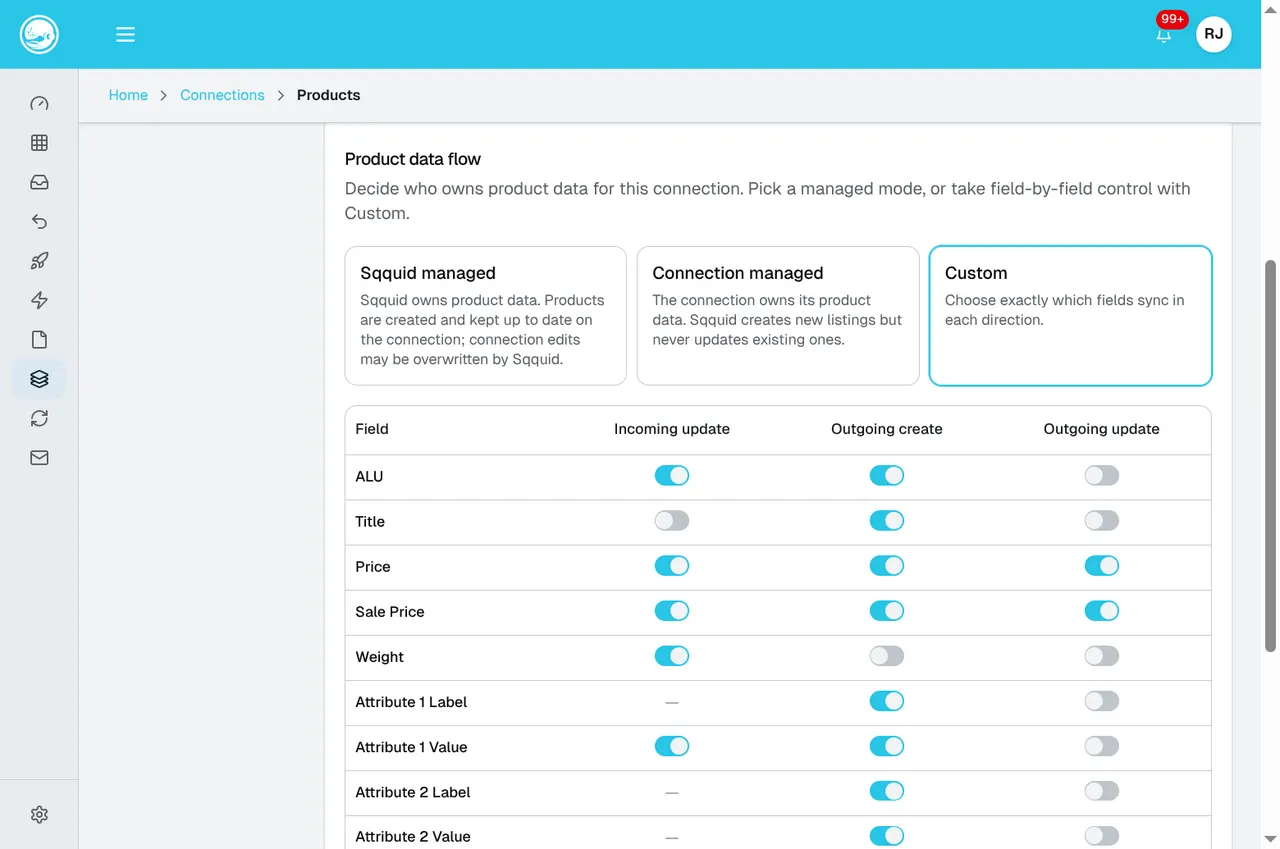
In Custom, review Outgoing create and Outgoing update separately. Choose the fields your team wants Sqquid to manage before saving. Available controls depend on your permissions.
Sync new products automatically enrolls newly created source products in Shopify synchronization. It does not change products that already exist. To enable existing products or change their mode, use the product sync controls.
For automatically enrolled products, choose:
- Full sync to create or update the product and inventory.
- Inventory sync only to update inventory for a product that already exists in Shopify.
When using full sync, Default visibility controls whether newly created Shopify products start visible or hidden.
Inventory and locations
Section titled “Inventory and locations”Shopify inventory can be updated in either of two ways:
- Single pool. Sqquid sends one combined available quantity.
- Inventory by location. Sqquid sends inventory to mapped Shopify locations.
To use inventory by location:
- Open the Shopify Connection.
- Select Locations.
- Turn on Inventory by location.
- Map each participating Sqquid location to a different Shopify location.
- Save the settings.
Each Shopify location can be mapped only once. See Locations and location mappings for how these pairs connect inventory and fulfillment across systems.
Initial and ongoing synchronization
Section titled “Initial and ongoing synchronization”The first synchronization can take longer than later updates, especially when Sqquid needs to create many products or variants. Shopify also limits how quickly apps can process large batches, so Sqquid may publish products in stages.
After the initial work is complete, Sqquid processes supported product and inventory changes automatically. Use the Connection’s Setup page and synchronization history to confirm recent activity.
Next, read Orders and fulfillment.