
Products overview
The Products section of the Sqquid app is where you review and manage the product records for each Connection: check what has synced, fix product data, resync items, and investigate sync errors.
One list per Connection
Section titled “One list per Connection”Products are always shown for one Connection at a time. Use the Connection selector in the toolbar to switch between Connections. Each Connection keeps its own product list, columns, filters, and saved views, because the same item can exist as a separate record on each Connection (see Product matching).
Products and variants
Section titled “Products and variants”The list shows parent products as rows, with their variants nested underneath. Variant rows are marked with a Variant badge. Use the chevron on a row to expand or collapse its variants, or the Expand all / Collapse all toggle in the toolbar to do it for the whole page.
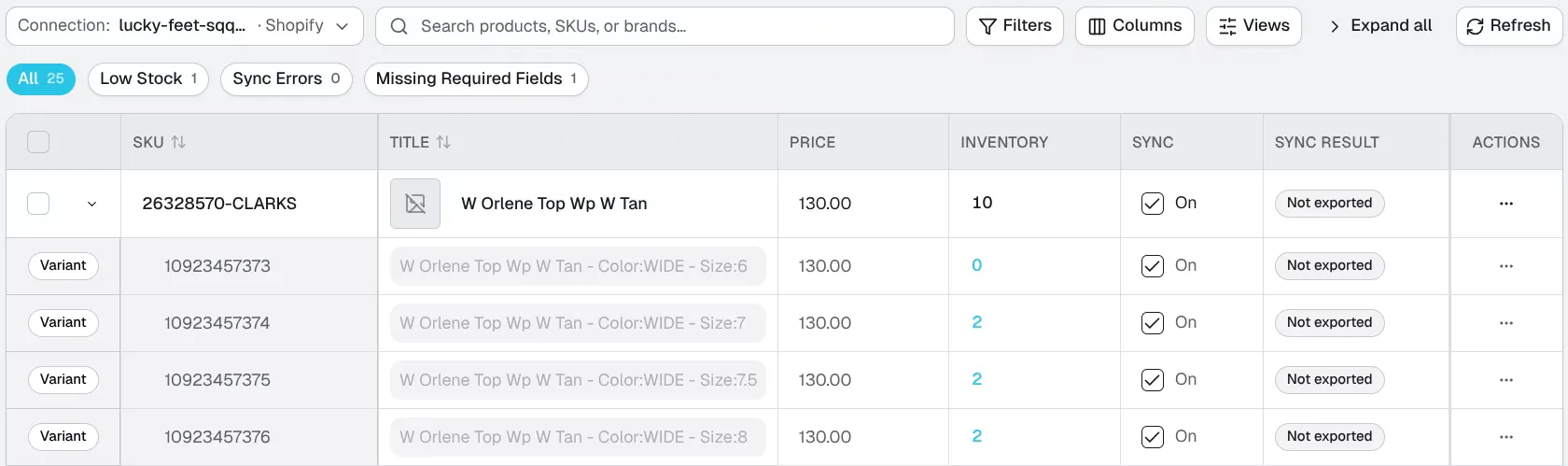
This example shows a reduced set of columns. Use Table columns to choose what appears in your list.
Some information lives on the parent (title, brand, categories, descriptions), some on the variant (attribute values such as size or color), and some on both (SKU, price). See Edit product fields for the full breakdown.
Columns
Section titled “Columns”By default the list shows SKU, Title, Brand, Price, Compare at, Inventory, Sync, Sync mode, Sync Result, and Last exported. Other columns include External ID, ALU, Categories, Attributes, Descriptions, Visibility, Created at, and Updated.
Select Table columns to show, hide, or reorder columns. Your column setup is remembered per Connection. Click a sortable header (ID, SKU, Title, Brand, Created at, Updated) to change the sort order.
Columns worth knowing:
| Column | Meaning |
|---|---|
| Sync | Whether Sqquid synchronizes this product or variant to the Connection (On / Off). |
| Sync mode | Full sync publishes product fields and inventory; Inventory only updates an existing listing. Some providers also send prices in this mode; check the Connection guide. |
| Visibility | Whether a synced product is Published or a Draft on the sales Connection. |
| Inventory | Read-only. The parent row shows the sum of its variants; selecting a variant’s quantity opens an inventory panel with per-location detail and history. |
| Sync Result | The outcome of the most recent export attempt (see below). |
| Last exported | When the product was last successfully exported. Shows Never if it has not been exported yet. |
Sync status at a glance
Section titled “Sync status at a glance”The Sync Result column shows one of three states:
| Status | Meaning |
|---|---|
| Synced | The last export to this Connection succeeded. |
| Error | The last export failed. Select the Error badge to see the error details. See Sync errors. |
| Not exported | The product has not been exported to this Connection yet. |
What you can do here
Section titled “What you can do here”- Search and filter the catalog, and save filter setups as reusable views.
- Edit product fields inline, with a review step before anything is saved.
- Make bulk changes across many products at once, including CSV export and import.
- Resync products so Sqquid pushes them to the Connection again.
- Check and resolve sync errors, including products that were paused after repeated failures.