
Start shipping with Sqquid and EasyPost
Connect EasyPost to buy shipping labels from Fulfillment in Sqquid. You can reuse saved package sizes, compare carrier rates, and print labels and packing slips. After you ship, Sqquid sends shipment information back to ecommerce platforms that support it.
1. Get ready to ship
Section titled “1. Get ready to ship”Before connecting EasyPost, make sure you have:
- An EasyPost account with the carrier accounts you want to use.
- Your EasyPost production API key, plus a test API key if you want to try the workflow first.
- A complete shipping address for each Sqquid Location you ship from.
- An enabled ecommerce Connection importing the orders you want to fulfill.
Under Settings > Fulfillment, set the fulfillment start date so older orders you have already handled stay out of the fulfillment queue.
EasyPost supplies rates and labels. Your ecommerce Connection imports the orders.
2. Connect EasyPost
Section titled “2. Connect EasyPost”- Open Connections and select EasyPost.
- Enter a Connection name and your production API key.
- Enter your test API key if you will test labels.
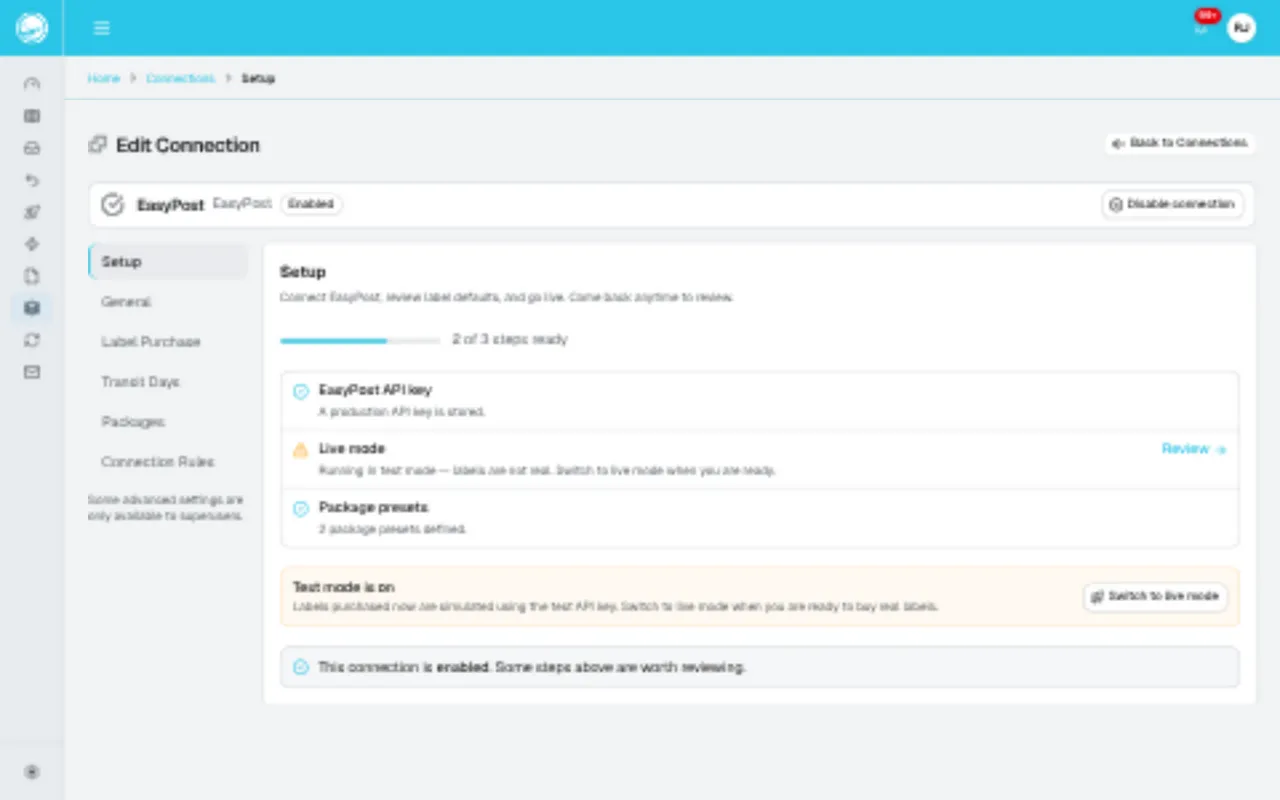
- Select Connect, then open Setup.
- Review the package and shipping settings below, complete the required Setup checks, and enable the Connection.
New Connections start in test mode, even if you only entered a production key. Test mode needs its own test key. When you are ready to buy real labels, select Switch to live mode on the Connection.
3. Save your usual package sizes
Section titled “3. Save your usual package sizes”Package presets pre-fill dimensions and weight so your team does not have to enter them for every shipment.
- Open the EasyPost Connection’s Packages settings.
- Add a package with a name your team will recognize, such as “Small shoe box”.
- Enter its width, length, and height in inches, and its weight in pounds.
- Save the package. Repeat for the other sizes you use.
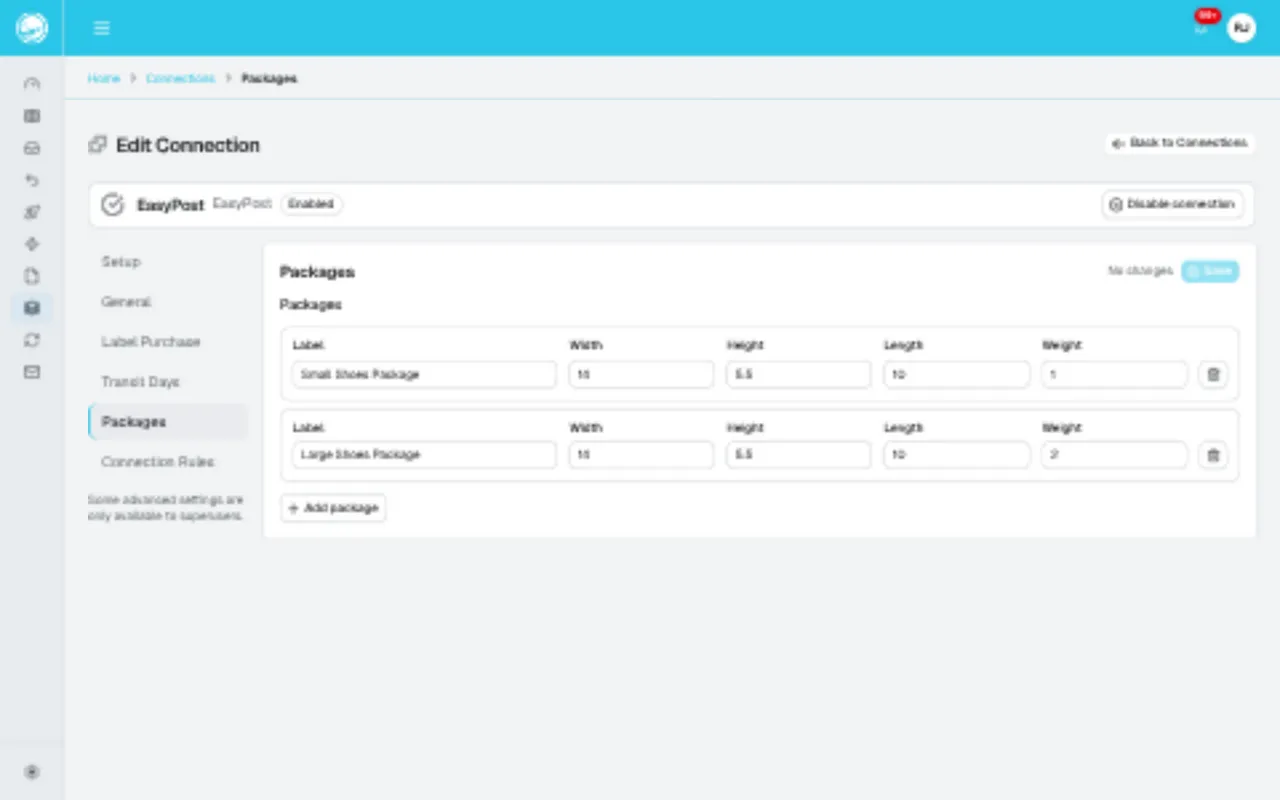
These are examples from a testing Account. Enter the measurements for your own parcels.
You can also use Add package while shipping an order. Choose Select a saved package to reuse a preset.
The package selector shows each preset’s dimensions and weight beside its name, so you can check them before requesting rates.
Check dimensions and weight against the actual packed parcel each time. Orders using the same box can still weigh different amounts. If you change package details after loading rates, refresh the rates before buying the label.
4. Choose your shipping options
Section titled “4. Choose your shipping options”Open the EasyPost Connection’s settings to choose how your team buys and prints labels.
Label purchase
Section titled “Label purchase”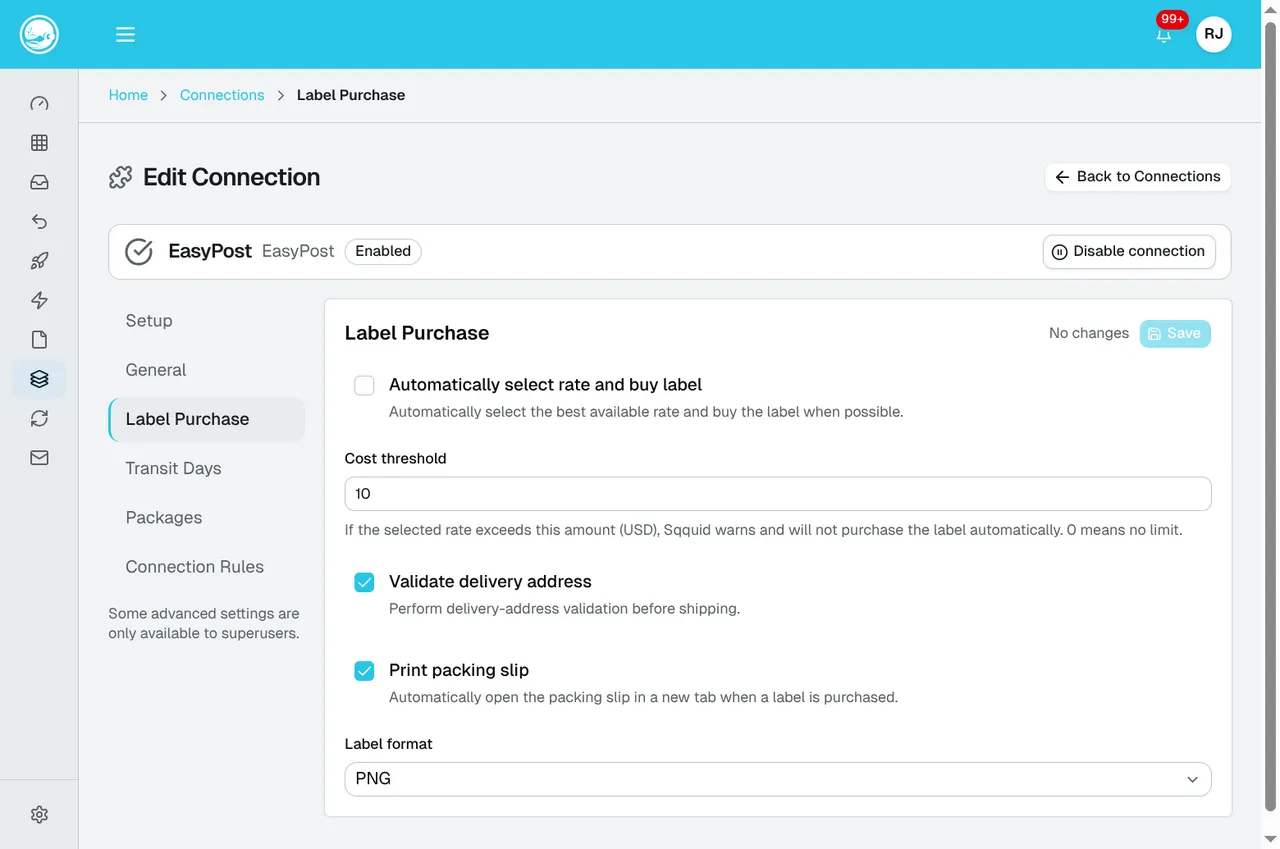
The screenshot shows example values. Choose settings for your own shipping workflow.
| Option | What it does |
|---|---|
| Automatically select rate and buy label | Lets Sqquid select an eligible rate and buy the label automatically. Leave it off if you want to review and choose the service for each order. |
| Cost threshold | Stops automatic purchase and warns when the selected rate exceeds this amount in USD. Set it to 0 for no limit. Review manual purchases separately; this is not a spending cap on every label. |
| Validate delivery address | Checks the delivery address before shipping. |
| Print packing slip | Opens the packing slip in a new tab when you buy a label. Turn this on if your team prints a slip with each shipment. |
| Label format | Choose PNG, PDF, ZPL, or EPL2 to suit your printing setup. |
Transit estimates and available services
Section titled “Transit estimates and available services”Under Transit days, you can add a weekend buffer, show services outside the requested delivery range, and configure a UPS SurePost buffer relative to the UPS Ground estimate. Shipping method mappings assign expected delivery days to named shipping methods.
Rules for each sales Connection let you require a saved package, exclude shipping methods, or prioritize preferred methods. For example, require a package preset if your team should always choose a known box size before buying a label.
You can also request Require signature on delivery? while shipping an individual order. Review the available service and rate before purchase.
See EasyPost settings for the settings reference.
Packing slips
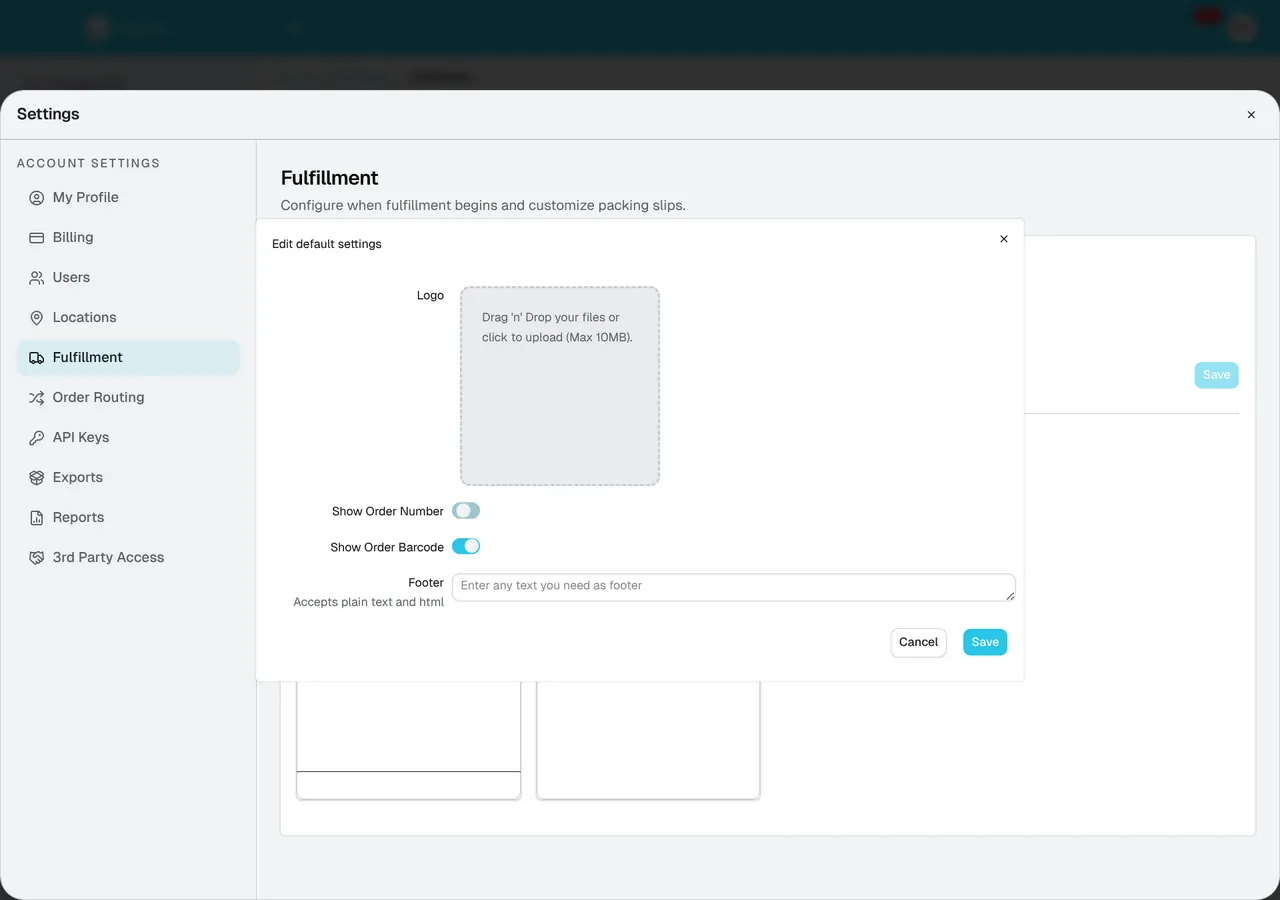
Section titled “Packing slips”Open Settings > Fulfillment > Packing slips to customize your packing slip. Add your logo, choose whether to show the order number and barcode, and add footer text such as return instructions. You can use a default slip or create one for a particular sales Connection.
5. Fulfill your first order
Section titled “5. Fulfill your first order”Once EasyPost is enabled and configured:
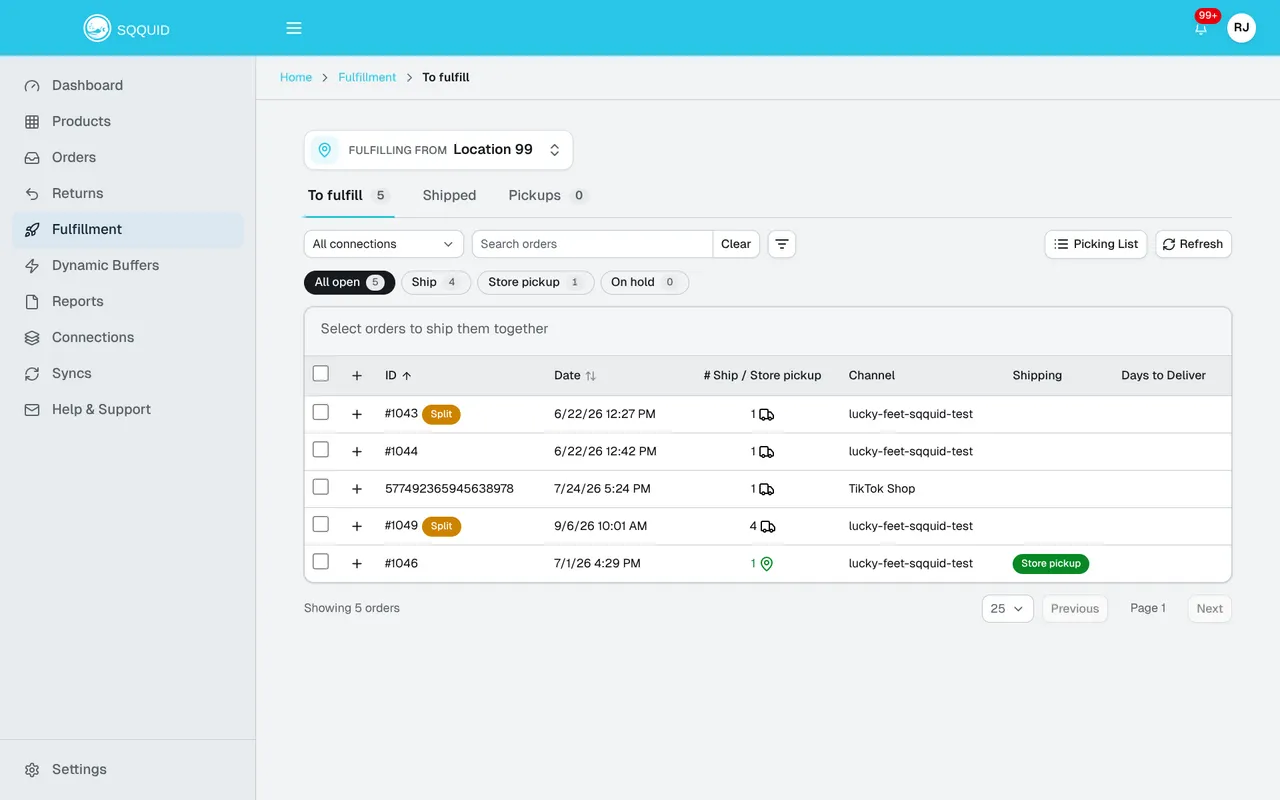
- Open Fulfillment and choose a specific Location under Fulfilling from.
- In To fulfill, find the order and expand it with +.
- Check the items and quantities, then select Ship this order.
- Review the delivery address and Package information. Select a saved package and check its dimensions and weight.
- If Pick Items appears, scan or enter each item’s SKU or ALU until you have picked the required quantities.
- Select Get Rates or Refresh Rates when shown. With automatic purchase off, choose a carrier service, review the price, and select Buy Label.
- Print the shipping label and packing slip. Check the tracking number, attach the label, and place the slip inside the parcel.
For an order split across Locations, this ships only the items assigned to the selected Location. The remaining items still need fulfillment.
If you are testing, check the label layout and package details in test mode first. Switch to live mode before shipping a real parcel.
If a purchase fails or its result is unclear, check Shipped or the order’s Shipments tab for an existing label before trying again. See Buy shipping labels for help.
6. Check what happened after fulfillment
Section titled “6. Check what happened after fulfillment”Sqquid saves the shipment, purchased label, and tracking information. Your packing slip is available with the shipment, and opens automatically if Print packing slip is enabled.
Choose the Location and open Shipped to review tracking or reprint documents. Select several shipments and choose Print labels & slips to print their documents together.
Updates to your ecommerce order
Section titled “Updates to your ecommerce order”Sqquid records the shipment first, then sends shipment information through the order’s sales Connection if that platform supports it. Buying a label does not mean the ecommerce update has already finished.
Shopify and BigCommerce support shipment and tracking updates. Salesforce Commerce supports shipment export. For other platforms, check shipment update support.
WooCommerce does not currently receive shipment updates from Sqquid. Complete fulfillment and add tracking in WooCommerce through your store’s shipping workflow.
When sending Shopify shipping fulfillment, Sqquid also asks Shopify to notify the customer. For other platforms, check their notification settings; a shipment update does not guarantee a customer email.
If an expected update is missing, check Syncs and the Connection’s errors before creating another shipment.
Hand the parcel to the carrier
Section titled “Hand the parcel to the carrier”Buying a label does not schedule collection. Arrange a drop-off or use the supported carrier pickup and manifest options from Shipped.
Ship several orders at once
Section titled “Ship several orders at once”After checking your first shipment, you can ship a batch from the same Location:
- In To fulfill, select orders on the current page and choose Ship Items.
- Select the saved package for the batch. Use separate batches for orders that need different packages.
- Scan or enter SKUs or ALUs until the required items are picked.
- Select Buy Labels, review the results, and print the successful labels and packing slips.
Bulk shipping automatically selects rates even if automatic selection is off for individual shipments. It buys a separate label for each order’s eligible items at this Location.
Successful orders leave the batch. Failed orders remain for you to resolve and retry. If Sqquid cannot select a rate for an order, ship it individually to choose a service manually.