
Connect Shopify
Use this guide when Shopify is a sales destination and another Connection supplies products and inventory. Shopify as a source uses Shopify Channels Hub, which is coming soon.
Prerequisites
Section titled “Prerequisites”- Permission to install apps in the intended Shopify store
- The correct Sqquid Organization and Account selected
- An enabled product and inventory source
- Stable, unique SKUs on existing Shopify variants
Connect
Section titled “Connect”- In Sqquid, open Connections and select Shopify → Connect.
- Continue to the Shopify App Store when prompted.
- Select the store, review the requested access, and install Sqquid.
- Return to the new Shopify Connection in Sqquid.
Settings
Section titled “Settings”Review product field ownership and new-product defaults. Decide whether inventory should sync as one pool or by Shopify location. If you enable inventory by location, map every participating Sqquid Location to its Shopify location.
If you enable return import, choose the fulfilling Location or a fixed return Location.
Finish setup and enable the Connection
Section titled “Finish setup and enable the Connection”Open Setup, resolve each failed check, and select Enable connection. Warnings identify optional or recommended settings.
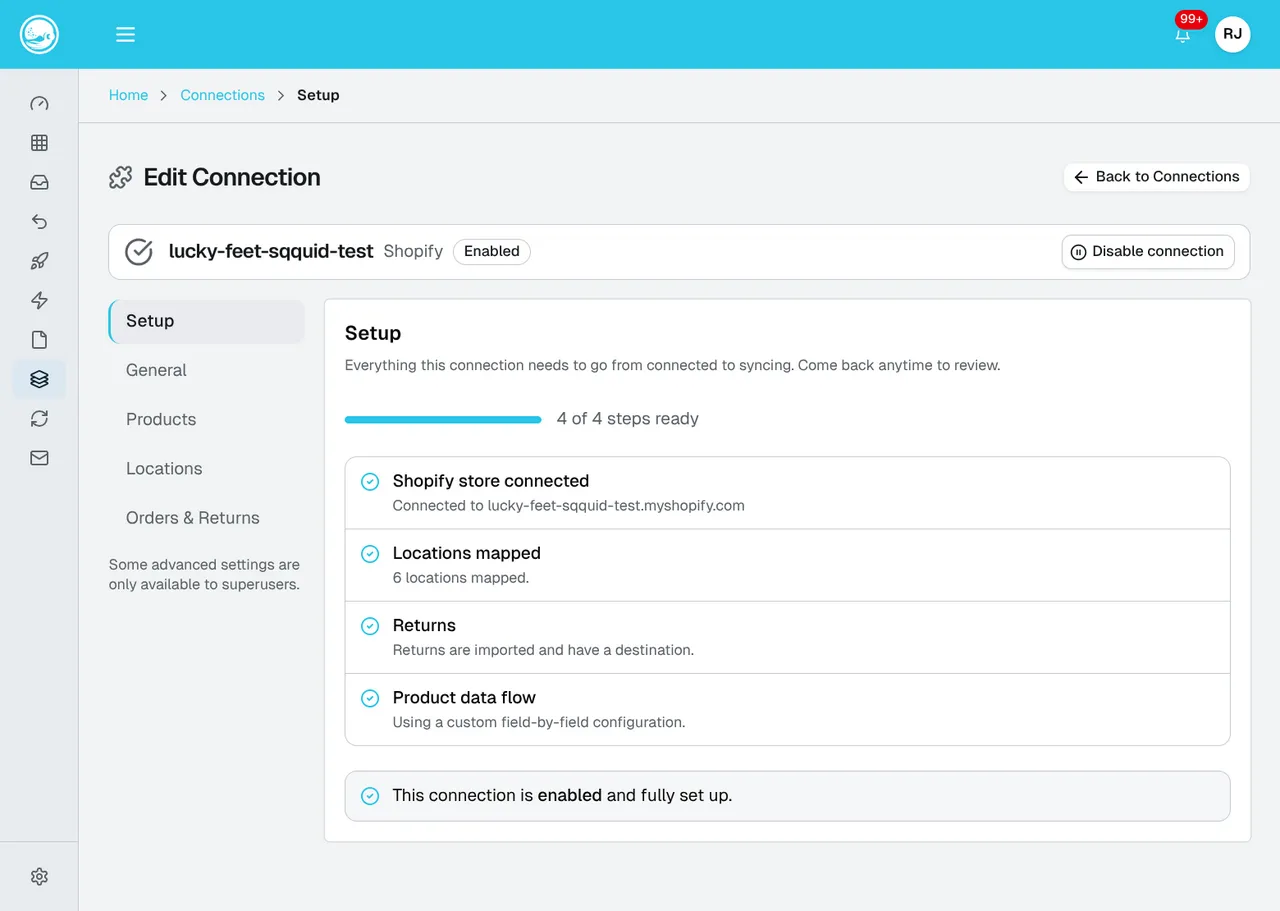
This example is already enabled and shows all checks ready. Your checklist identifies the settings that still need attention.
See Shopify settings.
Sync behavior
Section titled “Sync behavior”Test one product before enabling broad publishing. Confirm the intended listing, product fields, price, and inventory in Shopify.
Check an eligible order in Sqquid and a shipment update back in Shopify. See Products and inventory and Orders and fulfillment.
Reconnect Shopify
Section titled “Reconnect Shopify”Open the existing Connection, select General → Reconnect, and approve access in the same Shopify store. Then check Setup again.
Can I change the connected store?
Section titled “Can I change the connected store?”A different store needs its own authorization. Confirm the intended store before installation; do not use reconnect to switch a live Connection to another business’s store.