
Fulfillment overview
Open Fulfillment in the Sqquid app to work through orders assigned to your Locations. You can pick items, buy shipping labels, prepare store pickups, and review completed shipments.
Before you buy shipping labels
Section titled “Before you buy shipping labels”Purchasing labels in Sqquid requires one of these Connections:
- An enabled, configured EasyPost Connection with the carrier accounts you want to use.
- An enabled TikTok Shop Connection with TikTok Shipping enabled and configured in TikTok Shop. This option applies only to orders using TikTok Shipping. TikTok orders using seller shipping need EasyPost to buy labels in Sqquid.
Check that the fulfilling Location has a complete shipping address. Package and rate settings come from the Connection supplying the label.
| Feature | Availability |
|---|---|
| Shipping labels, saved packages, and bulk shipping | EasyPost, or TikTok Shop for TikTok Shipping orders |
| Delivery-address validation and signature requests | EasyPost only |
| Carrier pickups and manifests | EasyPost only, for eligible shipments and carriers |
| Shipment updates on the ecommerce platform | Depends on the sales Connection. See Shipments and notifications. |
Without a shipping provider for an order, you can mark it as shipped manually. This does not buy a label or send tracking to the ecommerce platform.
Choose a Location and view
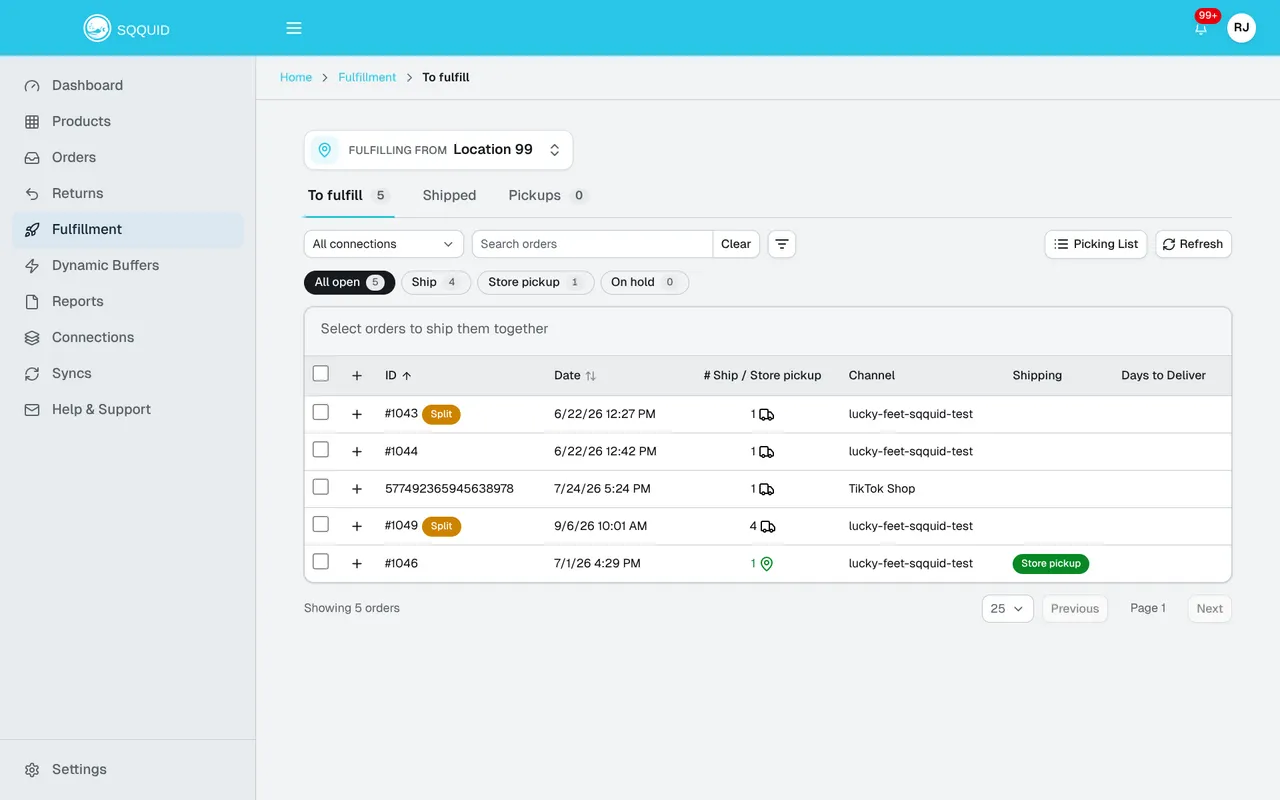
Section titled “Choose a Location and view”Use Fulfilling from to choose the Location you are working in. All locations gives you an overview. Select a specific Location before shipping, opening its picking list, or using Shipped and Pickups.
| View | What you will find |
|---|---|
| To fulfill | Open items to ship, store pickup orders, and items on hold. |
| Shipped | Shipment records, tracking, labels, packing slips, and carrier collection actions. |
| Pickups | Carrier pickup requests and their status. Customer store pickups are handled in To fulfill. |
Expand an order with + to see its items and quantities. A Split badge means the order has items assigned to more than one Location. Details opens the order panel, where you can review fulfillment, shipments, returns, and comments.
Next steps
Section titled “Next steps”- Find and pick orders.
- Buy shipping labels, individually or in a batch.
- Hold, cancel, or move items.
- Review shipments and notifications.
- Arrange carrier pickups and manifests.