
Locations
A Location represents a place where your business holds inventory or fulfills orders. It is usually a store, warehouse, stockroom, or other fulfillment site.
Locations belong to an Account. Sqquid uses them across inventory, Connection settings, dynamic buffers, order routing, and fulfillment.
One shared list of Locations
Section titled “One shared list of Locations”Each Location has a name, address, and stable identifier called the Store ID in the app. Your team sees the name. Sqquid uses the Store ID in mappings and rules.
Choose a short, unique Store ID when creating a Location and treat it as permanent. Connection mappings, inventory, buffers, and routing rules can refer to that value.
For example, your Account might contain:
| Location | Purpose |
|---|---|
| Downtown Store | Holds inventory, offers pickup, and fulfills local orders |
| Main Warehouse | Holds inventory and ships online orders |
| Dropship Supplier | Receives eligible dropship items |
Use one Sqquid Location for one real operational place. Avoid creating a duplicate Location for every sales Connection.
Location mappings
Section titled “Location mappings”External systems maintain their own location lists and identifiers. A location mapping tells a Connection which external location represents each Sqquid Location.
For example, the Sqquid Location Downtown Store might map to:
- Retail Floor in Shopify
- Store 01 in your POS
- A provider-specific fulfillment node in a marketplace
Sqquid uses mappings to send inventory and fulfillment updates to the correct external location.
In this Shopify example, the left column identifies each Sqquid Location and Store ID. The right column selects its counterpart in Shopify. Other Connections have their own mapping controls.
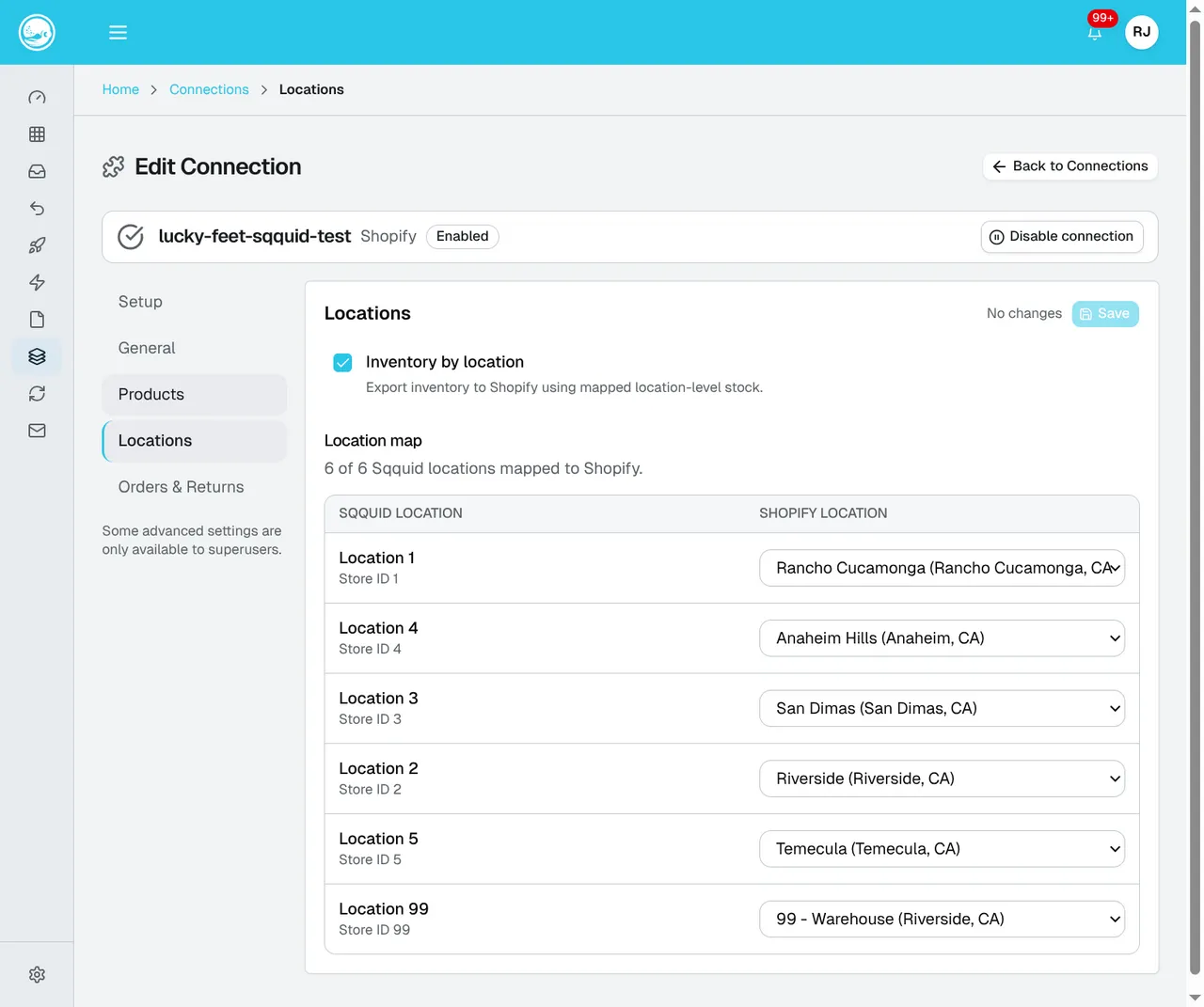
See Shopify inventory and locations for the steps shown here, or use your system’s Connection guide.
Where Locations come from
Section titled “Where Locations come from”The setup flow depends on the Account’s source of truth:
- For Lightspeed X, or Shopify Channels Hub when available, import locations from the source Connection and review the mappings.
- In other setups, create the Sqquid Locations and map them in each Connection.
An imported Location may need address details reviewed before distance-based routing or shipping is used.
Follow Add your locations to create or import Locations for your Account. For later changes, use Settings > Locations.
How Locations affect inventory
Section titled “How Locations affect inventory”Sqquid tracks inventory by product and Location. The Account total is built from the applicable location-level quantities.
A Connection can use its location mappings to decide which quantities to publish. Dynamic buffers can further reduce the quantity made available for a Location, product, or Connection.
How Locations affect order routing
Section titled “How Locations affect order routing”Order routing assigns incoming order-item quantities to eligible Locations. Depending on your rules, Sqquid can consider:
- The sales Connection that received the order
- Available inventory at each Location
- A fixed Location ranking
- The distance to the delivery address
- Pickup, dropship, buffer, and open-order settings
Accurate addresses are especially important when using closest-location routing.
In Fulfillment, choose the Location you are shipping from. Carrier pickup scheduling also requires its timezone and business hours.
Before changing or removing a Location
Section titled “Before changing or removing a Location”A Location can be referenced by Connection mappings, buffers, or order-routing rules. Review those references before removing it.
Changing a Location’s display name or address does not make it a different Location. Its Store ID continues to connect inventory and settings to the same place. Keep the Store ID unchanged. Contact support if an existing Location has the wrong identifier.
Use these practices:
- Give Locations names your staff can recognize.
- Keep addresses complete and current.
- Map a Location only to the corresponding real place in each provider.
- Review inventory and routing after changing mappings.
- Remove a Location from mappings and routing rules before attempting to delete it.