
Dynamic Buffers
A Dynamic Buffer holds back a fixed number of units from online availability. It leaves the stock recorded in your source system unchanged. For example, a buffer of 2 against 10 available units leaves 8 to sell online.
Open Dynamic Buffers in the Sqquid app for the Account you want to manage. Buffers stay in effect as stock changes, until you edit or delete them.
Find a buffer
Section titled “Find a buffer”The list shows each buffer’s ID, Type, Connection, Location, SKU, and Quantity. The Connection column and form field are currently labeled Channel in the app.
- Search by the SKU or barcode entered on the buffer. Enter at least three characters; clear the search to see all buffers again.
- Use the sortable column headings and page controls to browse the list.
- Select a buffer’s ID to edit it, or its trash icon to delete it.
- Use the refresh button to reload the list. This does not push inventory online.
Choose what to protect
Section titled “Choose what to protect”The fields you fill in determine the buffer’s type automatically.
| Field | Select or enter a value to… | Leave as None or blank to… |
|---|---|---|
| Connection | Limit the buffer to one sales Connection | Apply it across sales Connections |
| Location | Hold back stock at one Location | Reduce the combined inventory total only |
| SKU/Barcode | Limit the buffer to one inventory SKU | Apply it to every SKU in the selected scope |
Use the exact SKU recorded for inventory in Sqquid. If your inventory uses barcodes as SKUs, enter that barcode. Combine fields for a narrower scope, such as one SKU at one Location for one Connection. Leaving all three unselected creates a global buffer.
Matching buffers add together. A global buffer of 2 and a SKU-only buffer of 1 hold back 3 units from that SKU’s combined total. Adding another buffer does not replace an existing one.
Create a buffer
Section titled “Create a buffer”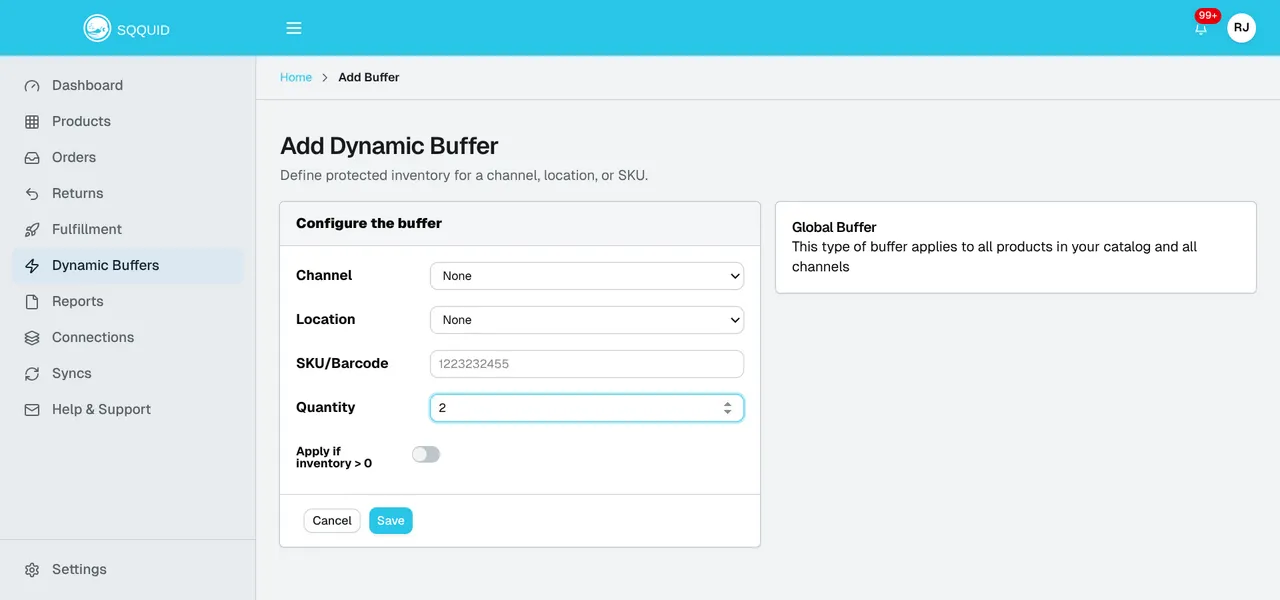
- Select Add Buffer.
- Set the Connection, Location, and SKU/Barcode for the scope you need.
- Enter the Quantity to hold back as a positive whole number. This is a number of units, not a percentage or the quantity you want to sell.
- Leave Apply if inventory > 0 off for a full refresh of the selected scope.
- Select Save. After Buffer saved appears, check the buffer in the list.
Apply if inventory > 0 is a save-time refresh option, not a permanent condition on the buffer. For Connection-wide buffers, it limits the initial refresh to products with stock. It is not retained when you reopen the buffer. Leave it off for other scopes.
Sqquid saves the buffer and requests a background export of affected products. A broad buffer can queue many products. You do not need to change the stock in your source or manually resync each product.
Edit or remove a buffer
Section titled “Edit or remove a buffer”To adjust a buffer, select its ID, change Quantity, and select Save. The new quantity replaces the old one. Increasing a positive buffer reduces online availability; decreasing it releases more stock for sale after the update reaches the Connection.
The Connection, Location, and SKU cannot be changed on an existing buffer. To change its scope, create a replacement and delete the old buffer. While both exist, overlapping quantities add together.
To remove a buffer, select its trash icon in the list or Delete on the edit page, then confirm Delete. Sqquid removes the rule and requests another export. The released quantity becomes available subject to current stock, other buffers, and the Connection’s inventory settings. Deleting a buffer does not delete products or change physical stock.
Select Cancel to leave the form without saving, or cancel the deletion confirmation to keep the buffer.
When changes appear online
Section titled “When changes appear online”Creating, editing, and deleting all require a background export. The success message confirms the change in Sqquid; it does not confirm that every store has updated.
An export can be triggered after the change. Sqquid also checks for product exports every five minutes. Allow for the next cycle plus export and marketplace processing time. Five minutes is not a completion guarantee. Large product lists, work already in progress, provider limits, and errors can make updates take longer or span several cycles. Connections can finish at different times.
To verify a change:
- Check Syncs for the destination Connection’s export and review any failures.
- Check the affected SKU’s quantity on the online store or marketplace, including its Location where applicable.
- If it is still wrong, confirm the buffer scope, overlapping buffers, Connection buffer settings, Location mappings, and product Sync switches. Review product sync errors.
After correcting a problem, you can resync an affected product. If changes still do not appear, contact Sqquid support with the Account, Connection, buffer ID, SKU, and time of the change.
Buffers affect order routing separately. To have inventory-based routing respect Location buffers, enable Apply inventory buffers in Order Routing. See buffers and order routing.